

Many users start their online journey with website builders for speed and simplicity. How to Migrate Away From a Website Builder is a common question for those now seeking more control and customization.
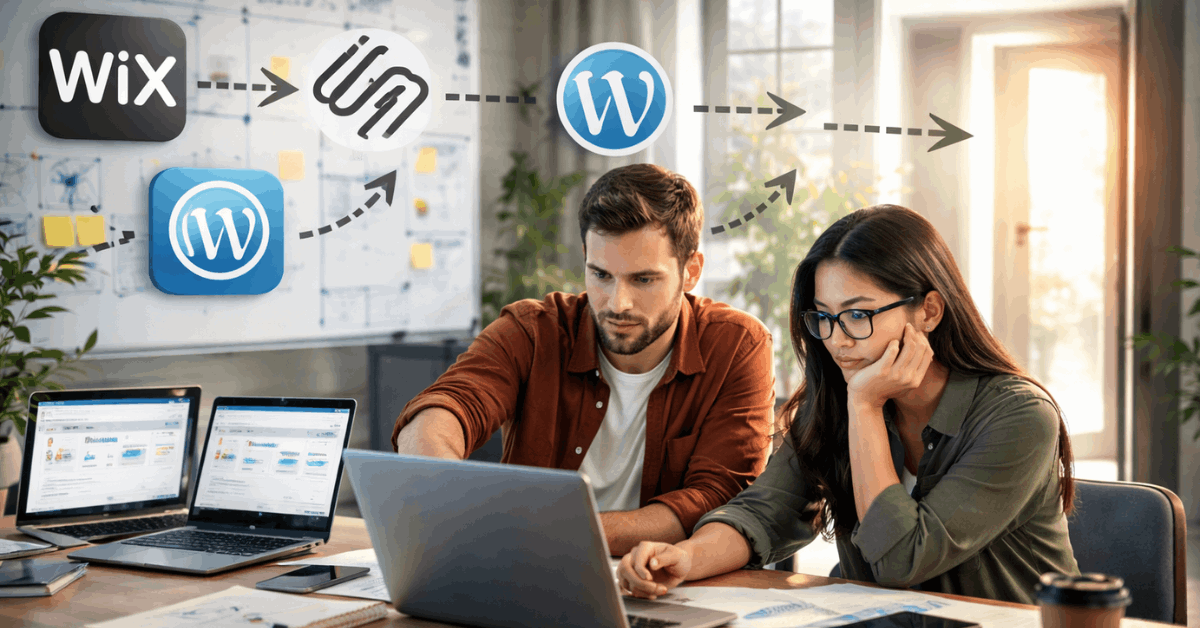
This guide explains how to move from platforms like Wix, Squarespace, and WordPress.com with minimal risk. You’ll find structured steps, tools, and real solutions to help you take ownership of your site.
Why You May Want to Leave Wix, Squarespace, or WordPress.com?
Users often outgrow the limitations of drag-and-drop platforms. Here’s what usually triggers the decision to migrate.
Limited Design and Customization Freedom
Most website builders restrict access to source code and advanced design options. You may hit a wall when trying to adjust layout behavior or integrate third-party features.
This is especially frustrating when you want to improve performance or SEO. Developers also struggle with limited control over header scripts and backend behavior.
These limitations make growth difficult for serious projects. At a certain point, builders feel more like barriers than helpers.
Cost and Ownership Concerns
Subscription-based pricing can rise quickly as your needs grow. Features like email support, storage upgrades, or custom domains add up.
Worse, your content is often locked inside the builder’s ecosystem. You don’t truly control your site files or database access.
Many users realize they don’t fully “own” their site, even after years of building. That’s when migration becomes the logical step.
Get Prepared: What to Do Before You Migrate
Preparation reduces migration stress and ensures nothing gets lost. Start with backup, then define where you’re moving.
Backup Your Entire Website
Save all text content, blog posts, and media files to local storage or cloud. If your builder allows it, export XML or CSV formats.
Download images and videos manually if automated export is limited. Take screenshots of your design and structure for easy reference.
You’ll use them later to recreate layouts. Organize everything in clearly labeled folders.
Choose Your New Platform and Hosting
Pick a platform that matches your technical comfort and project goals. WordPress.org works well for content-heavy sites.
Static generators like Hugo or Jekyll are best for speed-focused projects. Match your choice with hosting providers like SiteGround, Bluehost, or Netlify.
Make sure the host offers solid support, backups, and scalability. You’ll migrate faster if your destination is already well defined.
Migrating From Wix
Wix doesn’t offer a native export for full site data. You’ll need to recreate your content manually.
Rebuilding Content and Structure
Start by copying blog posts and static page content into documents. Download media assets one by one from the Wix dashboard.
Create a content list so you don’t forget important pages. Use WordPress or another CMS to rebuild the pages with equivalent structure.
Plugins like Elementor can help you match layout styles. Be patient—this part takes time but gives you more control in the long run.
Handling Redirects and SEO
Make a URL map comparing old Wix URLs and new page URLs. Set up 301 redirects on your new site to preserve search engine value.
Tools like Redirection (WordPress) make this simple. Also, install a sitemap plugin and submit it to Google Search Console.
Track traffic changes using Google Analytics. SEO might drop temporarily but will recover if redirects are clean.
Migrating From Squarespace
Squarespace supports basic exporting, but not everything transfers. Expect to rebuild some content manually.
Using the Export Tool
Use the built-in export feature to create a WordPress-compatible XML file. This file usually includes blog posts, pages, and images.
Media hosted externally or in galleries must be downloaded manually. Some page layouts or blocks won’t carry over properly.
Keep visual references of those to rebuild them later. Double-check that all blog tags and categories were included.
Finalizing the Site After Import
Once imported into WordPress, clean up formatting and permalinks. Rebuild key pages like galleries or product listings from scratch.
Install plugins that replicate Squarespace features like contact forms. Test your menus, links, and mobile layout.
Replace placeholder content and reupload media where needed. Customize your theme to match your old branding.
Migrating From WordPress.com
If you’re switching from WordPress.com to WordPress.org, the process is smoother. You stay within the WordPress ecosystem.
Exporting and Importing Data
Go to WordPress.com tools and export all content. You’ll receive an XML file that includes posts, pages, categories, and tags.
Install WordPress on your new hosting account and use the Import tool. Media files may not import perfectly, so verify after upload.
Reinstall plugins used on WordPress.com or find better alternatives. Your site structure should remain mostly intact.
Setting Up Hosting and Domain
Buy a hosting plan that supports WordPress auto-installs. Link your existing domain from WordPress.com to the new host. Update DNS settings or transfer domain ownership if needed.
Set up email, security, and backups on the new host. Install an SEO plugin like Rank Math or Yoast. Optimize site speed with a caching tool.
Recreate Design and Optimize Site Performance
Your old site’s look won’t transfer perfectly. But you can match most of it using flexible themes and tools.
Use Matching Themes and Page Builders
Choose a theme that resembles your previous layout structure. Use Elementor, Bricks, or Gutenberg blocks for precise control.
Upload your fonts, adjust spacing, and mimic sections using reusable blocks. Add CSS tweaks only when necessary.
Keep the design clean and focused. Consistency helps users recognize your brand even after the move.
Improve Speed and Mobile Experience
Compress images using tools like ShortPixel before upload. Use a lightweight theme and remove unused plugins.
Test with PageSpeed Insights or GTmetrix. Improve loading times by using a CDN or lazy loading.
Prioritize mobile responsiveness in every template. Fast and responsive sites keep users longer and boost rankings.
Post-Migration Checklist
Make sure your site runs smoothly before promoting it.
Check Pages, Links, and Forms
Test every page to confirm layout accuracy and loading. Check internal links, menus, buttons, and images. Submit your new sitemap to Google Search Console.
Confirm all redirects work. Set up a 404 page for any broken links. Finally, test every form, especially those sending emails.
Reconnect Analytics and Update Branding
Add your analytics scripts again, like Google Analytics or Tag Manager. Update meta titles, descriptions, and featured images for all pages.
Customize your favicon, footer, and email opt-ins. Replace any leftover logos or elements from the old platform.
Let users know your site has moved, and invite feedback. Review site performance regularly after launch.
After Migration: What to Expect Next
Taking full control also means handling site updates. You now own your infrastructure.
Handle Maintenance and Security
Update plugins, themes, and WordPress core regularly. Use automatic backups and install a security plugin. Scan for malware monthly.

Monitor uptime with free tools. Keep login credentials secure. This keeps your site stable over time.
Grow Without Limits
You can now install any plugin or custom integration you need. Add membership areas, e-commerce, or private dashboards. Build multilingual versions with WPML or TranslatePress.
You can even move to headless CMS setups later. Your site’s structure is now flexible and scalable. You’re no longer boxed in by builder limitations.
Ready to Own Your Website Future?
How to Migrate Away From a Website Builder becomes easier once you know what steps to take. Leaving Wix, Squarespace, or WordPress.com opens the door to full site control and ownership.
With the right tools and preparation, you can move without major issues. Start your migration today and take charge of your digital presence.